
After tons of arm twisting (but no reported injuries, thankfully), the technology department has graciously unblocked Glogster EDU for learners. We are thrilled about this!6.07.2010
Glogster is officially open for kids!
After tons of arm twisting (but no reported injuries, thankfully), the technology department has graciously unblocked Glogster EDU for learners. We are thrilled about this!3.31.2010
SMART Notebook: A Few Tips and Tricks
This morning, I gave you all a refresher on the SMART Board and Notebook software. I'm posting a couple of those tips here, so you can refer back.- Open the file you would like to import into Notebook. I will use a pdf of a released TAKS test, but you could use any file.
- Act as though you are going to print the file. Either click on the printer icon, or go to File>Print. The print window should open.
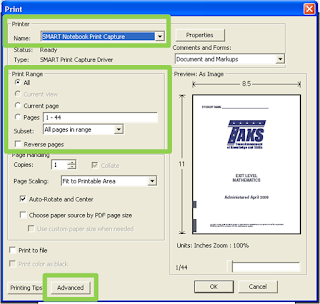
- Select SMART Notebook Print Capture as the printer from the drop-down menu.
- Choose which pages you would like to "print."
- Click on the Advanced tab at the bottom of the window.
- Make sure Print as Image is selected. Otherwise, your pages could be a little fuzzy.

- Click OK to continue, as you normally would when you are printing.
- Your file will now be imported into a SMART Notebook file.

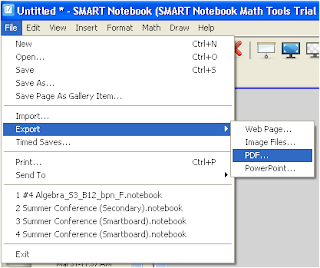
Your learners can now highlight, type, write, or whatever they need to do on top of the file. If you would like them to turn this in, have them go to File>Export>PDF to save it as a pdf file, which will include all of their annotations.
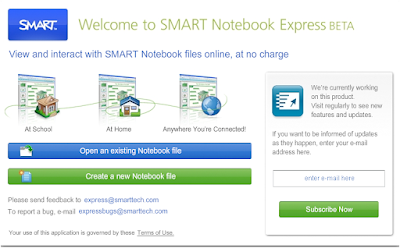
Another topic I mentioned was a new web-based version of Notebook software called Notebook Express. It is currently in beta release, but it is available to everyone. You can view SMART Notebook files via the web. You can create new files from this interface, although keep in mind that it is limited in functionality. Check it out!
Also check out some of the ready-to-use Notebook files in the SMART Exchange. There could be something you could use for a workshop or modify for your own purposes.
Don't forget that we all have licenses for the new SMART Notebook Math Tools. If you would like to install them, send me an email, and I can get you the activation code.
These are just a couple of new tidbits of info for you, but I am full of information on how to use SMART Notebook with your learners. This would be an excellent addition to their presentation resources. Imagine how awesome presentations would be if the learners made them interactive or if they integrated the Notebook software more often in project development. I would LOVE to teach a workshop to your classes. Send me an email, and let's schedule it!
3.22.2010
Expand the Lines of Communication with Learners and Parents
With DialMyCalls, I can record a message for a group of people, and the service will automatically call each person's phone number and play the message for them. I can even choose to have the service email the message to the users, as well. How easy is that?!
You could send out assignment reminders, information on projects, or just a friendly message to let them know you're thinking about them.
How much will this cost, you ask? Well, they actually have a free account that's not too shabby. You can send one call a day that is thirty seconds or less, to up to 25 people. If you're one of those types who doesn't want to be restricted, you can purchase call credits for pretty cheap. With the credits, you can really pester people by sending as many calls as you want per day, rambling on as long as you want, and sending the call to as many people as you want.
Below is a summary of some of the other features listed on their website:
- Record Your Own Voice Messages Easily: With our 3 easy to use tools, you can create your own custom message in a couple of minutes. Offering your callers this personalized touch is something they are sure to appreciate.
- You Control The Caller ID Settings: You are able to have your own home, cell phone, or business phone number appear on the call recipients' Caller ID. This feature is available on both the free and premium services.
- Voice Mail Detection: We are able to detect 99% of all answering machines & voice mail services. If your call ends up reaching an automated answering system, our system will know to wait and leave your message in its entirety.
- Detailed Call Reports: With every call you send, you will have access to a detailed call report with the results of every individual call. From there you are able to tell whether the call was answered live, went to voicemail, had an error, and many other specific call details.
If you're looking for news ways to communicate, try out DialMyCalls. Your parents and learners may just appreciate the extra reminders.
2.18.2010
iTunes for Research? Yes!
The content is not limited to educational institutions. If you scroll down along the left and click on Beyond Campus, you will find tons of content from museums, libraries, and other reputable sources.
Check out what is available to you, and more importantly, show it to the learners. This is a valuable resource for them and would be a great addition to their resources for research. Research Skills is one of our learning outcomes, so help them develop those skills through diverse methods. iTunes is a great resource for enhancing those skills.
As always, let me know if you would like me to help you or teach a workshop for your learners. You all know I love doing that!
2.17.2010
Don't let blocked sites stop you from creating a class blog!
When using a class blog through Blogger, you can set up an email address that wil allow users to send posts directly to the blog using an email account. Learners can send emails to your blog, which will then appear as regular blog posts. You can choose to have them publish automatically, or you can approve the posts yourself, before they are published on your class blog. The subject of the email serves as the title of the blog post, and the body of the message is the post itself. Learners can even post pictures to the blog via this email method, as well.
This is a great opportunity for learners to collaborate on a class blog, even though they can't access Blogger on campus. Display your blog on the SMART Board, and then seek input form the class on a topic. This could be used as an introduction to a topic at project launch, for scaffolding activities, as a means of reflection, to stimulate discussion, and much more. Try this with your classes, and the kids are sure to be engaged.
To create a new blog:
- Visit www.blogger.com.
- Create a new account, if you do not have one. If you already have a Google account (Gmail, Google Groups, etc.), you can sign in with that account.
- Click on Create a Blog.
- Provide a title for your blog.
- Decide what you want the web address to be.
- Complete the word verification.
- Click Continue.
- Choose a template.
- Click Continue.
- Click Start Blogging to get started!
- When you are in edit mode for your blog, along the top of the page, you should see some tabs. Click on the Settings tab.
- Click on the Email & Mobile link at the top of the page.
- In the Posting Options section, choose the email address you want to create that will enable email posting. Just delete "secretWords" and type in your own text for the email address.
- Choose your publishing options. Do you want the posts to publish automatically? Do you want to moderate the posts and review them before they are published?
- Click Save Settings at the bottom of the page.
If you're ready to add some additional content to your blog, you can even embed audio recordings, digital documents such as those published with Issuu, and other content directly into the blog post. You or the learners can record audio using Vocaroo, and then you can embed it into a blog post. There's even a widget that will allow your learners to chat with you, directly from the blog.
If you want more information on any of these resources or need some ideas on what you can do with your blog, I would love to work with you one-on-one or teach a workshop.
Happy blogging!
1.11.2010
Let the Learners Mix it Up!
With Capzles, users can create interactive digital products that incorporate images, video, audio, and text. Users can even upload Word, PowerPoint, Excel, and PDF files. A learner could create a capzle that combines images, articles, PowerPoint presentations, and audio, which could consist of background music, narration, (or both with the help of Audacity). This has the potential to be used to present any kind of information, so it would work well in a variety of projects. It is obviously great as an interactive timeline, but it's also an excellent digital storytelling tool, which lends itself perfectly to presenting many different types of content. Check out this example on Apple:
Another site you should check out is Stixy. This site allows users to present image files, documents, notes, and lists, on a type of digital bulletin board called a Stixyboard. Users can also create task lists, appointments and bookmarks using the Stixyboard.Stixy is a great collaboration tool, but it could also be used for presentations and final products. Learners can use it to collaborate on projects, as a presentation tool, to organize information such as during research, to display photos, share files with each other, and much more.
The Stixyboards can be shared in several different ways. You can invite certain people to view the Stixyboard, share with large numbers of people with a password, or open it up for all the world to see.
10.26.2009
I crack up just thinking about it!
This site is hilarious! I was cracking up before I even left the home page. That video is hilarious! Even if you aren't going to use the site, you need to watch that video. Ok, let's get serious. Blabberize allows users to upload photos of people (or animals, apparently) and make their mouths "move" to whatever audio you submit. You can record dialogue or upload it from a file. It's really fun. I couldn't get Brian to give me back my laptop last night, once I showed it to him, because he kept recording funny messages over and over. Thanks, Lori, for sharing this site!Indexed: "Making Fun of Some Things and Sense of Others"
Indexed is a project by Jessica Hagy through which she explains some of life's issues on index cards in graphical form, using Venn diagrams, bar graphs, and such. Her representations are very insightful and can be entertaining. Thanks, Gail, for sharing. Check out some of her work on the site. Here are a few examples:10.11.2009
Stop the Printing: Publish with issuu!
Have you seen issuu? This site allows users to upload documents and convert them into digital publications that look like magazines with pages you can flip through. They even have virtual shelves, so it looks like real magazines or newspapers sitting on a shelf. Cool and Weird at the Same Time: Futuristk
Check out the site Futuris.tk. This cool website allows users to send messages to themselves or others in the future. Users can create multimedia messages that incorporate text, audio, video, or images, and then choose a date for the message to be delivered. They can be sent to yourself or to others. I smell project...http://www.futuristk.com/
(The weird part is that you can have the message sent to people only after you have passed away...)
Another Way to Be Green...
9.13.2009
Lingt: Not Just for Foreign Language Classes
http://lingtlanguage.com/lingteditor/
8.22.2009
inSuggest: Cool Search Tool
Web inSuggest
With Web inSuggest, the user enters in a couple of websites they like, and the site returns suggestions on other websites they may like.
Images inSuggest
Using Images inSuggest, you can easily browse images from Flickr by selecting some images you like. inSuggest then displays similar images for you.
Bookmarks inSuggest
With Bookmarks inSuggest, just enter your delicious username, and the site will analyze your bookmarks, suggesting other bookmarks that are similar to your taste.
8.16.2009
Free Classroom Response Tool
8.13.2009
Copyright-Friendly Image Resouces
http://www.techradar.com/news/internet/web/12-essential-sites-for-great-free-photos-624818
7.30.2009
New Tech All Schools Conference Resources
Session: Google Apps in the Classroom
To get familiar with ways to use Google Apps in the classroom or to just learn how to use them yourself, check out the site below for tons of resources, videos, and handouts, many of which came directly from Google Educator Workshops. There is quite a bit of information on what Google Apps are available and how to use them as collaboration tools. Since they are web-based, they can be accessed from any computer and eliminate the scavenger hunt we sometimes need to go on to figure out where a file was saved in the first place.
http://sites.google.com/a/training.nthls.com/google-apps-for-new-tech/
Session: Social Media
During this session, the presenters shared insight on how to utilize social media in education. Rather than fighting social media, why don't we embrace it? The site below provides resources on different social media tools and how they can be used in education for the benefit of the students. If the list seems overwhelming, talk to me about which ideas seemed the most intriguing.
http://ntf.wikispaces.com/Workshop
Session: Entry Docs that Rock: Creating Engaging Entry Events Using Multimedia Tools
Examples:
- Emails voicing a conversation and describing a need
- Classroom trashed leaving a ramson not to intro a forensic science/genetic project
- Movie clip/ Book reading
- Bring in a guest to "interrupt" class with a situation that needs to be figured out.
- Case files for a CSI project
- Singing Biology Teacher: http://www.youtube.com/watch?v=IHDp7-IXr8g
Factors to Consider:
- Time: How much time do you have to create this?
- Technology: What are your tech skills? Do you have time to fiddle with something new?
- What kind of information are you trying to get across? Will words suffice, or would pictures help?
- What are you asking the students to create? Entry docs that match the final product are often effective.
Making Movies:
- iMovie, Movie Maker, Final Cut, Adobe Premiere
- Google's Picasa will create a slideshow for you from your pictures.
- Fake it with an automated PowerPoint.
Podcasting:
- Audacity (PC/Mac), Garage Band (Mac), iMovie (Mac), iTalk app (iPhone)
Websites:
- Google Sites: free hosting to anyone, easy templates
- Infinite resources: Wikispaces and many more!
Blogs:
- Infinite resouces: Blogger, WordPress, Livejournal, Typepad
- Once you set up a blog, it is essentially just word processing!
Sites for ripping video/audio from web:
- http://www.keepvid.com/ (fast, converts to flash or quicktime)
- http://www.convertdirect.com/ (slower, greater variety of files)
Software Company Tutorials:
YouTube
- EXCELLENT resource for technology tutorials!
- Good source for video clips (give credit!)
- http://tooble.tv/: create video files from YouTube videos (again, give credit!)
Other Ideas from Session Attendees:
- makebeliefscomix.com
- Fix something that's broken (have kids attempt an experiment that you know won't work)
Session: Digital Media/CTE Content Forum
Music/Sound/Picture Resources
- http://www.audacity.com/ (music files)
- http://www.sourceforge.net/ (music files)
- www.archive.org/details.php?identifier=prelinger (resource for free pictures, sounds, movies- all archived and copyright free!)
- http://www.icompositions.com/ (podcasts/etc)
- http://www.freesound.org/ (music files)
- http://www.freeplaymusic.com/ (variety of music- well sorted)
- http://www.garageband.com/ (music files)
- http://www.squared5.com/ (mpegstreamclip)
Sound File Editing / File Conversions Resources
- http://www.zamzar.com/ (File conversion/Convert those YouTube videos to mov or wmv files so you can use them in school!)
- http://www.convertdirect.com/ (flv converter)
Miscellaneous Video Resources
- www.playtube.com/ (video blog)
- http://celtx.com/ (formats scripts, storyboards, etc)
Misc Programming/Web Design Resources
- http://www.framethief.com/ (free stop motion animation software for Macs)
- http://www.alice.org/ (3D beginning programming)
- http://scratch.mit.edu/ (Snap together block to create stories, games and animations and share your creations on the web)
- http://vrml.cip.ica.uni-stuttgart.de/dune/ (white_dune: free 3d animation software)
- http://expression.microsoft.com/en-us/dd252934.aspx (Get Microsoft Expressions FREE for your school! It is comparable to Dreamweaver) I used Patricia Phillips, she is actually based in Arizona: 928-505-5220
Misc Photoshop Resources
- http://www.theonion.com/ (fake news using Photoshop)
- www.freakingnews.com/ (Fake news - like the onion.com)
Miscellaneous Resources
- http://www.microsoft.com/education/pil/IT_home.aspx (Innovative Teachers)
- Google Sketchup (tours, buildings, people)
- http://www.weebly.com/ (free websites)
Session: Photoshop Across the Curriculum
- Genetics: Kids can use pictures of two adults and create hypothetical offspring following the rules of genetics. Like Conan O'Brien's "If they made it" segment. Ask me if you don't know what I am talking about, and I'll be happy to explain.
- Kids take pictures of themselves dressed up for project and then make photos looks aged in Photoshop
- Anti-drug posters
- What kind of product would you like to invent? (Show photo of swiss army knife/mp3 player or other item)
- Reinforce vocabulary: Create captions at bottom of photo of that represents the word or use speech bubble to make the person look like it's talking. Captions define the word and use it in a sentence. I can explain what this means if you're interested.
- Magazine advertisements
- Self portraits: scan students image in and then paint it in Photoshop
- Collages
- New take on an art movement: surrealism, pop art, etc.
- Short and simple animations: Use different layers and loop them together to form the animation.
- Use it as a technology requirement: file management, computer image modes (RGB/CMYK), types of image files (.gif, .jpg)
- Create tutorials with screen shots


